Make the Fire TV Power Button Turn the Screen Black
One goal only: when you are ready to sleep and press the TV power button, the bright picture should go away.
What is happening now
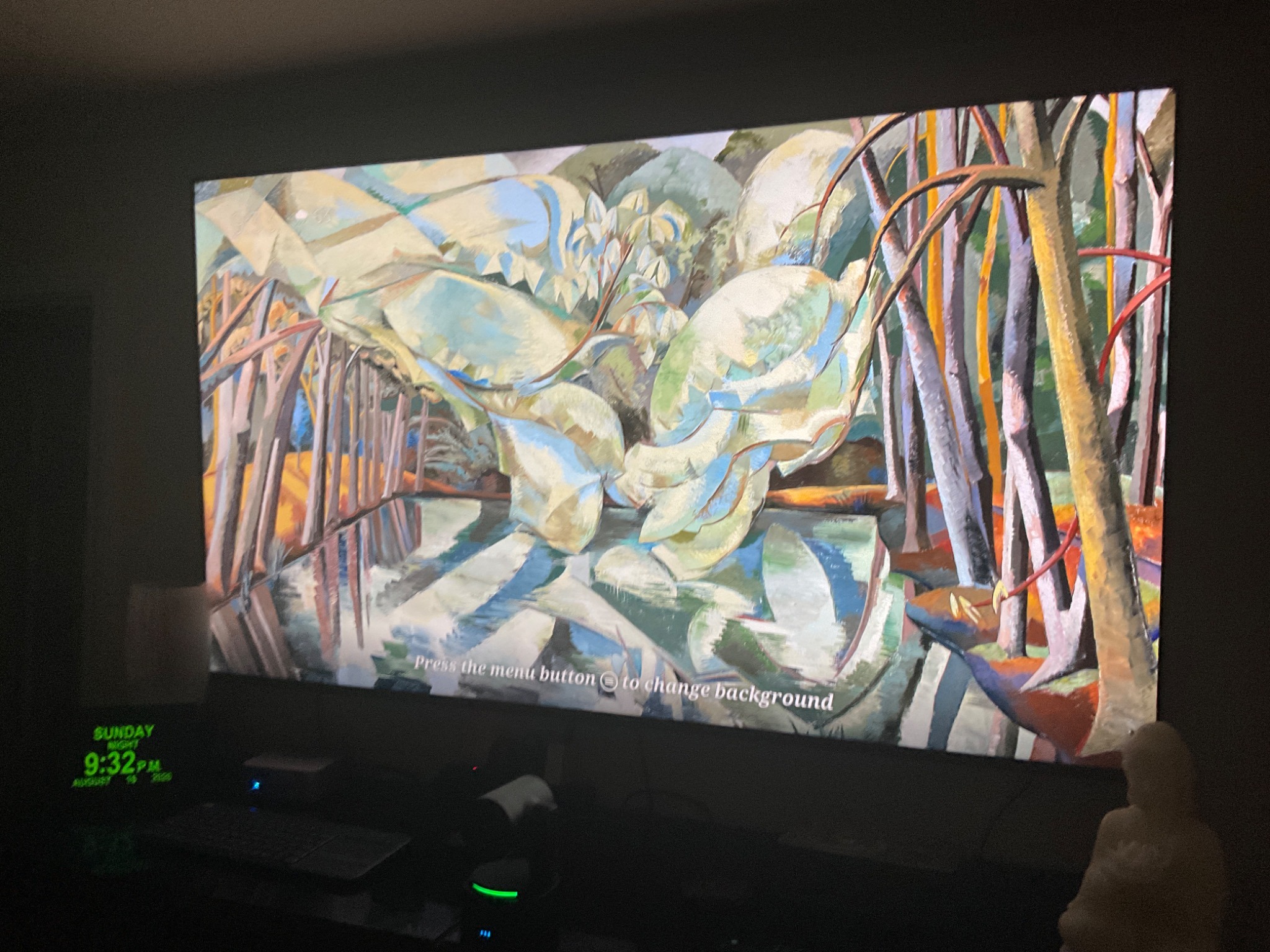
This artwork is called Ambient Experience. The TV is not really “off.” Fire TV is deliberately showing art.
Do this slowly, one step at a time
Pick up the Fire TV remote.
Press the button with the little house on it. This is the Home button.
Go to Settings.
On the Fire TV Home screen, move to the gear-shaped Settings icon and press the round center button on the remote.
Choose the words “Display & Sounds.”
Move the highlight until you see this exact wording, then press the center button once.
Choose the words “Ambient Experience.”
This is the feature that is putting artwork on the television when you want darkness.
Turn “Ambient Experience” OFF.
If the screen shows an On/Off switch, highlight Ambient Experience and change it to:
Stop here. You do not need to adjust pictures, backgrounds, widgets, motion detection, or any other Ambient setting.
Test the power button.
Return to whatever you normally watch. Then press the remote's power button once.
If you do not see an OFF switch
Some Fire TV versions place the power-button behavior inside:
For the goal of making the TV turn off normally, choose the setting that makes the power button turn the TV off, rather than launch Ambient Experience.
Menu wording can vary by Fire TV model/software version. If the choices on your television differ, stop and take one photo of that screen before changing anything.
Why this happened
Amazon's Fire TV documentation says a short press of the power button can enter Ambient Experience, which displays artwork and widgets instead of making the screen dark. Amazon also says Ambient Experience can be turned off under Settings → Display & Sounds → Ambient Experience.
This is therefore a TV setting, not a failure of the HDMI computer or the OBSBOT camera.
For the caregiver / installer
Desired final configuration:
Ambient Experience: OFF
Power button: one normal press should put the television into standby / black screen.
After making the change, test it three times from the normal HDMI input:
TV ON → press Power → screen black → press Power → TV returns.
Sources
Amazon Fire TV Help: “What is the Fire TV Ambient Experience?” — Amazon states that Ambient Experience can be turned off from Settings → Display & Sounds → Ambient Experience, and documents power-button interaction with Ambient Experience.
Amazon Fire TV Ambient Experience help
Panasonic support documentation for Fire TV models describes the same Fire TV setting path and explicitly states that, when Ambient Experience is turned off, the TV goes to standby rather than showing Ambient Mode.
Filename: hisense-fire-tv-disable-ambient-experience-senior-friendly-2026-08-16-v002.html
Planned public permalink: https://8k.art/beta/_daily-builds/2026-08-16/hisense-fire-tv-disable-ambient-experience-senior-friendly-2026-08-16-v002.html
Created 2026-08-16 for the CareTV daily-build documentation. Images are ordinary relative web files under ./files/ so the document works when published.